Showing posts with label forex. Show all posts

September 14, 2010

A Guide to Choosing an Internet Based Fax Service

send fax from computerAlthough most people have switched to email, there are those rare occasions when you have to send signed documents with your written signature and a fax just seems like an appropriate solution then.
You don’t need a dedicated fax machine any more as there are quite a few good web based services, both paid and free, that let you send and receive faxes using your computer itself without requiring any extra hardware. You don’t need a “fax modem” or even your traditional landline phone to send a fax via the computer.
How Internet Faxing Works?
Most online fax services work in a similar way. They give you a dedicated fax number and any fax message that’s sent to that number is forwarded to you as an email attachment. Alternatively, if you want to send a fax from your computer to another fax machine, you can send your document as an email attachment to the online fax service who in turn will forward it to the recipient’s fax machine.
Choosing an Internet Fax Service
After researching the plans and features of about a dozen Internet based faxing services, I have shortlisted the top 5 services that have all the necessary features and are most cost-effective. They have plans for everyone from the consumer who needs to send or receive an occasional fax to the businessman who needs to send multiple faxes daily.
1. GotFreeFax.com – With Got Free Fax, you can send up to two faxes in a day for free to any number in the U.S. and Canada.
You can either use its online rich text editor to compose a fax or upload a PDF /Word file from your computer, type the recipient’s fax number and hit send. The service won’t add any advertisements or branding to your faxes. If you would like to send a fax to an international number, you can buy credits through PayPal.
2. myFax.com – My Fax allows you to send two faxes, with up to 10 pages each, per day for free. Unlike “Got Free Fax,” which only lets you send free faxes to US and Canada based numbers, My Fax supports a much large set of countries even for their free service.
MyFax offers a dedicated Fax number for an extra fee where you can receive faxes. All faxes sent to your personal fax number will arrive in your email inbox as PDFs.
3. GreenFax.com – With Green Fax you can again send and receive faxes via email. They offer a unique prepaid plan where you are only charged per page for sending faxes to US and Canada numbers without any monthly fees.
If you are sending a fax to an international number, you are billed per-minute of fax transmission time and unsuccessful transmissions are not charged.
4. eFax.com – If you need a fax number outside the USA, eFax is probably the best option for you. They offer your local fax numbers in 45 different countries for your incoming faxes. For a fixed monthly fee, you may receive up to 130 pages by fax per month while you pay a per page fee for sending faxes and this varies based on the destination.
With eFax, you may either send and receive faxes via your email program or they also offer integration with Microsoft Office programs.
5. RingCentral Fax – With RingCentral, you can send faxes worldwide through an email message, via their web interface, or from any Windows application. They charge a fixed monthly fee and their outgoing fee seems to be among the lowest in the industry.
Internet Fax Services – Plan Comparison Chart
The following chart compares in detail the pricing plans of various online fax services and also the cost of sending faxes to some popular destinations.
online fax - comparison
These rates often apply to fax pages that take less than 60 seconds to transmit. If the fax transmission is taking longer than 60 seconds, some companies may bill you on a per-minute basis instead of per page.
[*] FaxPipe and MaxEmail are two other Internet based fax services that let you send and receive faxes and they have an overall lower monthly fee but it has be paid annually.
Which is the best Internet Faxing Service for me?
It depends on your country of residence, the volume of documents that you plan to fax in a month and the location of your client (if you wish to receive incoming faxes).
For most consumers, who have to send a fax occasionally , GotFreeFax looks like a perfect service. They do not charge a monthly fee, the rates for international outgoing faxes are competitive and you can send a fax from the browser without requiring any setup.
If your clients /contacts are based outside the U.S., you can go with eFax as they will give you a local fax number in that country and your clients won’t have to dial an international number in order to send you a fax. RingCentral and myFax also offer attractive pricing plans for volume faxing.
September 02, 2010

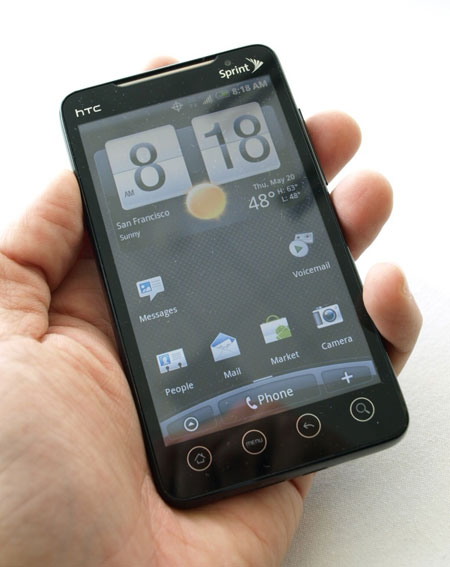
HTC EVO 4G Problems: What Users Complain about the Most

From screen separation to USB charging issues, here are the EVO 4G pitfalls users complain about most.
Looking into the HTC EVO 4G on Sprint? As the current king of the 4G hill, it has certainly earned its stars, but WiMax juggernaut has it’s shortcomings, too. Like the iPhone 4, early adopters ran into a handful of frequent problems with the EVO 4G. Here are the issues any potential buyer will want to be aware of.

Poor battery life

Sure, your shiny new EVO 4G will function as a Wi-Fi hotspot, sharing out your 4G signal to up to eight friends, but you had better find an outlet if you want to keep them happy. Although the EVO 4G has roughly the same battery capacity as most other smartphones, heavy 4G use can quickly whittle it down within just hours. It’s not a manufacturing error: Just an unfortunate consequence of pumping data way faster than your 3G peers.

USB charging issues

A small number of EVO 4G buyers report they have had issues charging their phones via the microUSB port. Some claim their phones will not charge at all, while others experience intermittent charging. The problem appears to be due to the female microUSB port working its way loose from the motherboard. HTC is aware of the problem and will exchange phones within the standard one-year warranty period.

Light leakage and glass separation

The 4.3-inch display on the EVO 4G, gorgeous as it is, has had some issues. Early adopters complained that the screens on some phones are not properly sealed, leading to light from the backlight bleeding out, and potentially in the long term, dust build up. HTC claims it has remedied issues at the factory that caused the problem.

Unresponsive touch screens

The EVO 4G uses the same capacitive technology found on devices like the iPhone and Droid, but some users complain the device can become unresponsive when it isn’t grounded (being held in the hand). Check out the demo video below.


September 01, 2010

4 Tips for Writing SEO-Friendly Blog Posts

In addition to writing for their human readers, web writers and bloggers have to consider the digital web crawlers employed by search engines like Google Your business can’t skip the task.
Since most would-be readers use search engines to find blog posts, you need to make sure that Google ranks your site highly when those readers search for terms related to your business and the content you’re writing.
You could spend thousands of dollars to have a search marketing firm optimize your business’s blog for search engines, but chances are that you can learn a lot of the fundamentals yourself, saving yourself a lot of money as long as you have the interest and the time. Here’s a basic primer on Search Engine Optimization (SEO) for your company’s blog.

1. Always Include Search Terms in Your Post’s Title


When Google reads a website to index it, it reads the code directly, not the snazzy presentation that humans see. The way most blogging platforms are built, the headline or title of your blog post is among the first things Google sees, and Google generally assumes the words that appear earliest are the most important. That’s why the title is the most important part of your blog post when it comes to SEO.
Think about who you want to reach with this blog post, and what that person might be searching for when looking for your business’s goods or services, then include critical words from that hypothetical search in the title. The most important terms should appear as quickly as you can reasonably fit them in. Just be careful not to make the title unreadable or awkward to human readers — that SEO effort will have been for naught if the reader is immediately turned off by the content once he or she finds it.
Here’s a pro tip: You’re not likely to win strong ranking for more than one or two search terms at once, so minimalism is a virtue here. Don’t get over-ambitious. Focus on one potential search term, then if you want to rank for a second term, write a separate and unique post specifically with it in mind.

2. Link Important Words to Earlier Blog Posts


Search engines generally assume that a blog post that has been linked to has more authority than one that has not. They also consider exactly what word or phrase linked to the post; a blog post about the iPhone is going to be more likely to show up in Google searches on the subject if another page links the word “iPhone” to the post.
You’ll get the most value from external links from sites that Google or other search engines already consider to be an authority of the subject (if the top blog about iPhones links the word to your post, you’ll get a huge boost), but all incoming links will still pass rank to your page, even those from elsewhere on your site.
So be sure and link important keywords to other pages or previous posts on your blog to gain some credibility and search rank. It will make a big difference. Just don’t overdo it; not only do human readers hate reading blogs so filled with links that they might accidentally click on something, Google may penalize you if you go overboard, too.

3. Hit the Tagging Sweet Spot


Most blogging platforms let you apply tags to your posts. Tags help organize your blog so both humans and search engines can find what they’re looking for. They’re terms like “consulting,” “local” or “technology” that reflect the topics and content of the post.
Google tries to recognize tags and use them to prioritize your site in its search ranking for those terms. The tags are usually links to other pages on your blog (usually a backlog of other posts with the same tag), and like we said earlier, linking search terms to other pages on your site helps too.
So by all means, add pertinent tags to your blog post, but be warned that Google and other search engines are wary of sites that try to game this system. They will penalize you in the search rankings if you use so many tags that the web indexing bots suspect you might be attempting to associate your content with unrelated topics just to score extra traffic.
The method for determining this is arcane, but a good rule of thumb from a pro blogger is that five to 10 appropriate tags are usually right in the sweet spot.

4. Use Google Insights to Find the Best Search Terms


Google Insights Image
You don’t have to play a guessing game about the best tags or search terms to link or put in your post’s title. Since Google is the most popular search engine, it makes sense to focus your efforts there. Whenever you’re not sure which terms to go with, hit up Google Insights, a web-based tool that compares the popularity of any search terms you want to know about.
For example, if your business is a coffee shop but you’re not sure whether would-be customers are more likely to search for “café” or “coffee shop,” Insights can tell you which one is more popular.
These four tips should get you on your way to having a more SEO-friendly corporate blog. Add your tips for search engine optimization in the comments below.

How to Make your Windows Start-up Faster

Slow Windows StartupDoes your Windows computer take really long to start-up?
Well, you are not alone with this problem but fortunately, with some minor tweaks, you can get your sluggish Windows to start much faster without re-installing Windows or adding any new hardware.
The logic is fairly simple. Your computer loads quite a few software programs and services during start-up (look at all the icons in your Windows System tray). If you can trim this list, your computer’s boot time will decrease.
I have been testing a free utility called Soluto and it helped reduce the start-up time of my Windows computer from 3.15 minutes to around 1.25 minutes. All this with a few easy clicks and without confusing the user with any technical jargon.
soluto boot problems
After you install Soluto, it sorts your start-up programs list into three categories:
  • No-brainer – remove these programs from start-up with giving a second thought.
  • Potentially removable – another list of start-up programs that may also be removed provided you know what these programs do.
  • Required – Certain programs and services are required to run Windows properly and therefore should not be removed.
Depending upon the software app, you may then either choose “Pause” to completely remove that app from the start-up queue or choose “Delay” when you want the app to run automatically but not immediately at start-up. Soluto will launch the “delayed” app once the boot up is over and your system is idle.
You can also hover the mouse over any program name and Soluto will display the number of seconds that the app adds to the start-up time. And don’t bother about making mistakes because Soluto has a useful “Undo all” feature that will restore the start-up list to the original state with a click.
system boot time
Once you are done classifying your start-up programs list, reboot the computer and you should notice a difference between the start-up time.
Where to download Soluto?
The official site for Soluto is soluto.com but in order to download the program, you should head over to mysoluto.com.
Alternatives to Soluto
If you are tech-savvy, you can also use a utility like Sysinternals Autoruns to manually prevent all the non-essential Windows processes and programs from running at start-up.
Just uncheck all the Autorun entries and Services that you don’t wish to load at startup and reboot your system. You’ll however need a separate program to get the “delay” feature which is so handy in Solute.
autoruns

August 30, 2010

How to Check the Health of your Hard Drive

Hard disk failure is possibly the worst thing that can happen to your computer and it often occurs without giving any warning signs.

Test Your Hard Drive for Impending Problems

hard diskYou may however run certain tests on your computer beforehand to get an idea about the current condition of your hard disk. This should in turn help you decide whether a replacement drive is necessary or not.

Step 1: Check your hard disk for errors

All recent versions of Windows include a utility called Chkdsk.exe that can check your hard disk for any bad sectors.
You may either run Chkdsk from the command line (see details) or launch Windows Explorer, right click the drive that you wish to examine and choose Properties. Switch to the Tools tab and click the “Check Now” button under Error checking. Select “Scan for and attempt recovery of bad sectors” to perform a thorough disk check.

Step 2: Understand the sounds of your disk

Do you sometimes hear strange sounds coming out of the CPU box? Well, if the hard drive is making those sounds, it could be an alarming situation and your best bet would be that you turn off the computer before any further damage is done to the disk.
But how do you distinguish between sounds coming from a hard disk with noise that’s made by the fans or the power supply? Here’s a useful page where you can listen to recorded sounds of various hard drives that have lead to a crash. If your disk is making a similar sound, get a replacement quickly.

Step 3: Catch errors before they happen

Disk Checkup is a free hard disk monitoring utility that displays tons of diagnostic data about your disk. While the level of detail it provides may easily confuse even tech-savvy users, just ignore the numbers and keep the utility running in the background.
It monitors your disk’s temperature, read and write error rate, etc. and will alert you when the values of any of these parameters approach dangerous levels. These may be signs of an impending disk failure. Disk Checkup is free for personal use.

Step 4: Thoroughly test your Hard Disk

SeaTools is free diagnostic tool that can completely test your hard drive regardless of the OS installed on it. The tool is provided by Seagate but it works with non-Seagate disk drives as well.
To get started, you need to download the ISO image of SeaTools for DOS and create a bootable CD. Now boot the computer with the CD in the drive, accept the license agreement and run a long test (the full scan). If any defects are found, a list will be offered at the end or after aborting the disk scan.
Other computer vendors /disk manufactures including Samsung, Hitachi, Toshiba (Fujitsu), Western Digital, Lenovo, Dell, etc. too offer diagnostic tools that work only with their own brand of hard drives. If you are having frequent computer problems (like system hangs or fails to boot up), you may run these tools to confirm if the problems are hard drive related.

August 28, 2010

History of the Internet – Timeline

The Internet was created in the United States by the "United States Department of Defense Advanced Research Projects Agency" (known as ARPA). It was then known as ARPANET and went online in 1969. The World Wide Web was created at CERN in Switzerland in 1989 by Tim Berners-Lee. See the Internet Timeline.
internet history timeline

August 25, 2010

The Best OCR Tools for Converting Images to Text

OCROCR software let you easily convert images, such as digital photographs, scanned documents, printed books, etc. into text. Once you perform OCR on an image, you’ll be able to copy-paste or edit the text content of that image without any retyping and it also becomes more searchable.

The Best Web-based OCR Services

Most scanners ship with some sort of OCR software but if you don’t have a scanner, you can simply capture a photograph of the printed text with your digital camera or even your mobile phone and then use an online OCR utility to extract text out of that image.
Meet the best online OCR services that can help you convert images into text.
1. Google Docs – When you upload an image file or a scanned PDF to Google Docs, check the option that says “Convert text to Google Docs format” and Google Docs will automatically perform OCR on the file before saving it to your account.
If the OCR operation is successful, all the extracted text is stored as a new document else Google Docs will store your original image without any modification.
google docs OCR
With Google Docs, you can perform OCR on images and PDFs as large as 2 MB, the text recognition accuracy is quite impressive and there are no limits on the number of files that you can process in a day. However, Google Docs won’t retain the original formatting of the document and the OCR engine almost fails with low-resolution images.
2. Abbyy FineReader – FineReader Online is a web-based OCR service that can instantly convert your PDF files and images into corresponding office file formats. This is an Abbyy service and therefore the character recognition accuracy is quite good.
Unlike the OCR engine in Google Docs that can only recognize printed text written Latin characters, FineReader can understand a much wider variety of languages. It even works with multilingual documents that have text written multiple languages.
A free account at FineReader Online will only let you convert a handful of images to text and you’ll have to shell out around $3 per 10 pages for additional conversions.
3. OnlineOCR.net – Online OCR, as the name suggests, is a cloud based OCR service that can handle all common images formats including scanned PDFs. If you have multiple images that you would like to convert to text in one go, you can put them all in a single zip file and upload it to Online OCR.
Of all the OCR services that I have tried so far, Online OCR has impressed me the most. The character recognition accuracy is quite good and the converted documents look like a replica of the original images. In my limited test with three different types of images, Online OCR was able to preserve the structure and formatting after the conversion in all the three case.
online OCR
Like FineReader, Online OCR offers credits for converting around 5-6 images to text for free and after the limit is over, you’ll have to pay around $4 per 50 pages.
4. FreeOCR.com – If you ever need to extract plain text from an image or a scanned PDF file, Free OCR may be worth a try. The service requires no registration and you can handle up to 10 image uploads per hour.
Free OCR is like a graphical front-end for Google’s Tesseract OCR engine that is often considered as one of the most accurate text recognition engines around. However, Tesseract supports only a limited number of languages and it ignores most of the formatting of the scanned image.
5. OCR Terminal – OCR Terminal is one of the most mature online OCR services out there that not only supports images and scanned PDFs but even software screenshots.
For instance, if you ever get an error message on your computer, capture a screenshot, upload the image to OCR terminal and it will return you the entire error in plain text that you can copy-paste in emails or online forums.
OCR Terminal is internally powered by Abbyy’s OCR engine. A free account with OCR Terminal gets you 20 free conversions every month and you can pay around 7-9 ¢ per additional conversion.
6. OCR Online – Like FreeOCR, OCR Online doesn’t require any registration and you can translate up to 100 images to text in a single day. It also supports a large number of languages.
OCR Online offers good recognition accuracy and preserves most of the original formatting but what you’ll like most about this service is batch processing. You can upload a large number of files in one batch and it will output the results as one document.

Online OCR Software – A Comparison

online OCR software
[*] One obvious downside will all the above mentioned OCR software is that they work only with printed text, they cannot recognize characters from hand-written text.

August 24, 2010

Flying along: Japanese artist opens up the seas with a boat shaped like a giant zip

When Moses thought of parting the sea you can bet he never thought of using a zip.
Japanese artist Yasuhiro Suzuki though has created a motorboat designed to look like a giant version of the fastening, with the wake it leaves behind in the water meant to represent its teeth.
Suzuki made a scale model of his design back in 2004 but has only now unveiled the full-sized vessel.
Zip, zip away: Japanese artist Yasuhiro Suzuki has created a motorboat designed to look like a giant zip which 'opens the sea up' as it travels along
Zipping along: Japanese artist Yasuhiro Suzuki has created a motorboat designed to look like a giant zipper
Zipping along: Japanese artist Yasuhiro Suzuki has created a motorboat designed to look like a giant zipper which 'opens the sea up' as it travels along
Describing his creation, the artist said: 'This work is a boat modelled after a zipper tab.
'As the vessel glides through the water, the wake looks like a zipper coming undone, suggesting the image of the sea opening up.
'The Zipper Ship will travel to and fro between Takamatsu and Megijima [in Japan] and will also carry passengers.'
Suzuki first showed off his unique vessel at the recent Setouchi International Art Festival in Japan.
Suzuki made a scale model of his design back in 2004 and has only now unveiled the final version
Dream project: Suzuki made a scale model of his design back in 2004 and has only now unveiled the final version at the Setouchi International Art Festival in Japan
The boat is now undergoing sea trials to evaluate its rollover risk and until it's approved by the authorities the ambitious artist will have to wait before he can take passengers for a ride.
Suzuki has won several awards, including the
Interactive art prize at the Digital Stadium Awards in 2001, since graduating as a designer from Tokyo Zokei University.

His other works include Perspective of the Globe Jungle, created in 2001, and Property of Water in 2004.
Watch video of the giant zip boat in action:

Hackers see the cloud as ripe territory

Is the cloud a hacker's paradise? A survey at last month's DefCon hacking conference paints that picture.
Sponsored by security vendor Fortify Software, the survey asked 100 hackers who attended DefCon about security in the cloud. A sizable 96 percent said they believe the cloud opens up more hacking opportunities, while 89 percent said cloud vendors aren't doing enough to address cybersecurity issues.
Among the hackers surveyed, 45 percent said they had already tried to exploit vulnerabilities in the cloud. Although only 12 percent admitted to hacking into cloud systems for the money, that's still a significant percentage to ponder for companies moving to the cloud, according to Fortify. A Gartner study from earlier this year found that by 2012, 20 percent of businesses will own no back-end IT assets of their own, planning instead to store everything all in the cloud.
Drilling down further, 21 percent of those questioned see software as a service (SaaS) cloud systems as the most vulnerable. Among the hackers who'd snooped around the cloud, 33 percent said they found vulnerabilities in the public DNS (Domain Name System), 16 percent have hacked into log files, and 12 percent have been able to check out communications profiles.
"More than anything, this research confirms our ongoing observations that cloud vendors--as well as the IT software industry as a whole--need to redouble their governance and security assurance strategies when developing solutions, whether cloud-based or not, as all IT systems will eventually have to support a cloud resource," Fortify chief products officer Barmak Meftah said in a statement.

August 18, 2010

HOW TO: Make Your Mobile Websites Act More Like Native Apps

As smartphone sales continue to soar, more and more developers are focusing their efforts on building applications for mobile devices. Whether it is a native application or a mobile-optimized website, mobile innovation is taking place at a breakneck pace.
Native applications still have their place, but increasingly, the number of different device types, operating systems, and screen sizes make developing optimized mobile web apps more and more enticing. Historically, there has been a trade-off between the rapid, iterative, cross-platform nature of web applications versus the more standard UI, support for gestures, and multi-touch and hardware optimizations on the native side.
Fortunately, a number of different frameworks are making it easier and easier for developers to create mobile web applications that look and feel more like native apps. Here are six examples. If you don’t see your favorites on the list, add them in the comments below.

1. Sencha Touch


In June, Sencha, formerly Ext JS, launched its Sencha Touch HTML5 mobile framework. The cross-platform framework is compatible with iOS and Android devices and will be expanded to other platforms soon.
Sencha Touch combines a resolution-independent UI library, touch event management, support for geolocation and offline access, and special CSS and CSS3 capabilities.
Sencha is the company behind the Ext JS, jQTouch and Raphael projects, so the new framework packs some serious power. Check out this Touch Solitaire demo, especially on the iPad. The Drag & Drop support is really amazing.

2. SproutCore


SproutCore is an HTML5 framework that aims to help developers build desktop-caliber web applications that run in any modern web browser, without plugins. The lead developer recently quit his job at Apple to focus on the project full-time.
Check out this demo on an iPhone or Android device and I think you’ll agree, it’s pretty impressive stuff. By leveraging existing backends and taking cues from platforms like .NET and Cocoa, SproutCore is focused on offering scalable, robust performance in a web browser.
While not just for mobile apps, the HTML5 nature of SproutCore really makes it a good choice.


Later this month, Yahoo! will release the latest version of its YUI library of JavaScript utilities. YUI is a really impressive framework and the upcoming version includes even better support for touch and mobile devices.
Christian Heilmann wrote up a great preview of YUI 3.2.0 for Ajaxian that details some of the new additions.
Yahoo! continues to be one of the best resources for tools, libraries, utilities and documents for web and mobile developers.


jQuery Mobile isn’t a full application framework like SproutCore or Sencha Touch, but the new initiative does aim to bring more native controls to mobile web apps.
Announced last week, the jQuery Mobile project will be a “complete, unified, mobile UI framework.” The core jQuery project will also continue to be optimized for mobile, but the jQuery Mobile project is focused on delivering a truly top-notch JavaScript experience and interface to the most-used smartphone web browsers.
The project is still in the early stages, but you can see what browsers and versions jQuery Mobile will support on this chart. The jQuery Core team is working to support all A and B browsers.

5. XUI


While developing Phonegap, the XUI team became frustrated with the existing JavaScript libraries and their performances on mobile devices.
XUI was created to work across mobile browsers, including WebKit, Fennec, and Opera. The goal is to provide lots of cross-compatibility without much of the overhead that can make traditional JavaScript libraries unsuitable for mobile devices.

6. iUI


iUI is an iPhone user interface framework designed to bring an iPhone-like experience to mobile web apps. It works with WebKit-based devices and includes a JavaScript library, CSS, and images.
It was originally started back in 2007 but has been steadily updated over the years to add support to more types of devices and even the iPad.
Let us know which frameworks you’re using to make your mobile websites act more like native apps in the comments.

August 05, 2010

Downloading Attachments from Multiple E-Mails


If you ever get an email message in your Inbox that includes multiple file attachments, you can easily download all the attachments to your hard disk as a single zip archive with a click. Such a feature is available in all popular email clients including Gmail, Yahoo Mail, Hotmail and even Microsoft Outlook.
However, let’s now consider a slightly different problem.
You have multiple emails that contain multiple attachments of multiple types and you now want to download them all (the attachments) to a local folder? How do you do this?
Well, here’s an easy workaround.
Step 1. Go to drop.io and click the “Create a Drop” button. Drop.io is now a paid service but you can still create temporary accounts for free.
Step 2. You’ll be assigned a unique email address for your drop.io account. Copy this email address to your clipboard (it’s listed in the right sidebar).
Step 3. Go back to your email inbox and forward all the messages, that you would like to download, to your new drop.io email address. Within seconds, drop.io will pull all the file attachments from your emails and will add them to the new “drop” that you created in Step 1.
Step 4. Now click Share –> Zip file to create a compressed zip file containing all the email attachments that you can save to your computer with a click. Once you are done with the download, go to Settings –> Maintenance –> Destroy Drop to delete all your files from drop.io permanently.
Drop.io, is blazingly fast. Another advantage is that if there’re any file attachments in the “drop” that you would not like to download locally, like a big video file or some PowerPoint slideshow with pictures of cute kittens, you can easily delete them from drop.io before creating the zip.

July 26, 2010

Give your Eyes a Break with the 20-20-20 Rule

If you spend a good part of your day using the computer, the 20-20-20 rule, that I recently learned recently from my doctor, might also help you relax your tired eyes.
Relax Eyes
The rule goes something like this.
The screen is bright and therefore, if you don’t blink your eyes as often as you should while working at the computer for long hours, you can have dry eyes sometimes even followed by redness.
To help you deal with this problem, the 20-20-20 rule suggest that after every 20 minutes, you (the computer user) should take a break for at least 20 seconds and look at objects that are 20 feet away from you.
Since it is nearly impossible for any computer users to remember that they have to take a break every 20 minutes, there are free software programs that can help you in your mission.
For instance, there’s a Windows utility called Eye Defender that sits in the system tray and, after a fixed interval, it will auto-run a visual training (see video below in full screen) for the eyes on your screen.


You are supposed to follow the pointer on the screen and this in turn should help relax your eyes.
WorkRave is another handy app that reminds you to take breaks at regular intervals to prevent computer related stress (including eyestrain).
It offers two kinds of breaks – micro-breaks, these are short and are mean to relax your eyes, and then there are rest-breaks where you are supposed to walk or stretch a little. Workrave also has a built-in wizard that demonstrates the various types of stretching exercises that you can do during these breaks.
Stretching Exercies
If you are an active computer user, these tools need to be on your desktop.

Create a Video Sitemap for your WordPress Site

Do you ever embed YouTube videos in your web pages? If the answer is yes, you should create an XML Video Sitemap as it will help improve your site’s performance in Google and other search engines.
Add Video Sitemap
Why Create XML Sitemaps for Video?
Video Sitemaps are plain text files containing a list of videos that are either embedded or hosted on your website. During regular crawling, Google mostly ignores video content that’s embedded in web pages but with the help of a video sitemap, you can easily inform Google about all the videos that are on your site.
Video Sitemaps will help your site pages rank in both video search results as well as Google’s universal search. If you would like know more about XML Sitemaps for Video, watch this video or visit google.com/videositemaps for more technical details.


How to Create XML Video Sitemaps?
If you run a WordPress blog, you can use my Video Sitemap plug-in to generate an XML Sitemap for your site with a click. Install the plugin, click the “generate” button and it will instantly create an XML Sitemap file in your site’s root directory using all YouTube clips that are on your site.
Once you have created your Video Sitemap, you can either ping Google directly or use the webmaster tools of Google and Bing to permanently associate your video sitemap with your website or web. Here’s a video demo:


The Limitations with XML Sitemap
The XML Sitemap plug-in currently works with YouTube videos only though future versions may support Vimeo, Facebook, Flickr, Daily Motion and other online video hosting websites.
This will generate video sitemaps for self-hosted WordPress blogs only. If you are on Blogger, WordPress.com or Tumblr, I may have something for you at a later date.

July 17, 2010

WordPress Plugins that Power Word Investor

WordPress PluginsMy tech blog is powered by the very-awesome WordPress software.
Following is a complete list of all the WordPress plugins that work behind the scenes to add new functionality to these sites that’s otherwise not available in the vanilla version of WordPress.org.

Must-Have WordPress Plugins for your Site

1. Google XML Sitemaps – Since you want Google and other search engines to know about each and every page of your WordPress website, you should have an XML sitemap and this plug-in makes it a one-click process.
2. All in One SEO Pack – While WordPress software now includes the rel=canonical directive by default, if you wish to write search friendly titles that are different from the heading of the page, get this plug-in.
3. Automatic WordPress Backup – I host the static JS and CSS files of this blog on Amazon S3 and this plug-in helps me create a backup of all the essential WordPress files (like themes and plugins) and the MySQL databases to the same S3 account.
4. Hyper Cache – This is a nice caching plug-in for WordPress that helps in reducing the load on your web server. I was initially on the more popular WP Super Cache plug-in but had to switch to Hyper Cache as the former was not quite compatible with my web host.
5. Redirection – If an external site is linking to a non-existent or a 404 page on my site, I use the redirection plug-in to forward all the incoming traffic to the right pages.
6. Bing 404 – If someone lands on a 404 page on my site for which redirection is not yet enabled, this plug-in will display links to relevant article on the error page. For example, a 404 pages like wordinvestor.com/flickr has links to my Flickr related stories.
7. WordPress.com Stats – Google Analytics is obviously the best solution for tracking visitors but if you want something quick and simple, WP Stats is something nice-to-have alongside Google Analytics. The advantage – it will display the traffic charts right inside your WordPress dashboard.
8. Akismet – I generally close comments on my stories after a couple of days while Akismet helps me filter out spam comments on fresh posts.
9. SlideShare – This helps me easily embed SlideShare presentations in any of my stories using short codes. It saves time and the embedded presentation automatically fits the width of the site – .
10. WordPress PDA – If you ever had a chance to visit @wordinvestor on your mobile phone, you may have noticed that the layout is completely different. Earlier, the mobile version of the site was done through Google Reader but now its the PDA plug-in that handles the mobile traffic based on the browser’s user agent.
11. WP-Paginate – If you scroll to the bottom of any archives page , you may see some numbered boxes – they are done through the Paginate plug-in.
12. Debug Queries – This is another awesome plug-in that helps me debug which of the MySQL queries are taking time to execute and thus slowing down the blog.
13. YARRP – The related posts plug-in adds links to old stories that may be contextually related to the content of the current story. It also helps you expose your archived content to search bots.
14. Smart YouTube – Like the SlideShare plug-in, Smart YouTube helps me easily embed videos from YouTube into my site. Here, I just have to copy-paste the URL of a YouTube video and the plug-in will automatically convert it into an embed code.
15. WP-Associatizer – This plug-in will automatically rewrite any Amazon URLs in your posts to use your Amazon Associates ID.

July 15, 2010

Track 404 Errors on your Website as they Happen!

404 - Not FoundYour website can display 404 errors for two reasons:
Reason #1 (in your control) – If you change the URL of an existing page or decide to delete it completely from your server, your visitor will get a 404 or “File Not Found” error when they try to access that page.
Reason #2 (not in your control) – You page URL is abc.com/xyz and another site decided to link to your page but they mistakenly used a wrong URL (say abc.com/xyy) – if anyone visits your page through the other site, they’ll see a 404.

Track all the Missing Pages on your Site

It is extremely important that you get your 404 errors fixed as soon as you spot them because they not only spoil the visitor experience but your site is also losing Google juice. You get juice from every incoming link to your site but the benefit is lost if that link is pointing to a non-existent page.
Let me now share the various tools that I use to track track 404 error pages on my site.


If are using Google Analytics, you can slightly tweak the same code to also enable tracking of missing pages through. The modified code will generate a virtual pageview in your Analytics reports (see the above screenshot) that will not provide you with the URL of the missing page but also the URL of the referring site.
The only issue with the Google Analytics approach is that it can artificially inflate the actually pageviews of your site though by a very small number.
My next favorite service is LinkPatch – they have a version that is free for tracking one domain. LinkPatch is purely for tracking 404 errors – you just to have add a line of code to your 404 template* and it will send you instant emails as soon as it discovers any 404 page on your site.


What you’ll like most about LinkPatch is the ease of use (Google Analytics is obviously very complex for most users) and that the notifications for missing pages are delivered in real-time so you don’t have lose any traffic.
While LinkPatch and Google Analytics will get you the information you are looking for, there’s one obvious downside – both these services require you to add some JavaScript code to your template’s 404 page and they’ll therefore not work with blog sites hosted on Blogger, WordPress.com, etc.
In that case, I recommend using the very-awesome Google Webmaster tools. Go to Dashboard –> Diagnostics –> Crawl Errors and select the “Not found” option.


Here you’ll see a list of pages that returned a 404 status code to Google while it was trying to index your site. The tool may not catch every single missing page of your site but, as Matt Cutts remarked, “the vast majority of the backlinks you’d care about, at least as far as Google is concerned.”
[*] WordPress users can add the tracking code to either their 404.php file or anywhere in the template through the function is_404().

July 14, 2010

A Chair Made of Old CDs

cd chair
If you are thinking of more creative ways to reuse the old CDs, here’s another one  – this ‘panda chair’ is constructed from a simple base covered in CDs lined up in rows.

July 13, 2010

Got Kids? A Simple Way to Block Adult Sites on your Computer

Kids Using Computer
If your tech-savvy kids are spending a fair amount of their computer time surfing the Internet, there’s a chance that they may sometimes accidentally stumble upon adult sites that you would definitely not like them to see.
Keep your Kids from Seeing Adult Content on the Web
It is nearly impossible for any parent to manually monitor their child’s entire computer session and what you therefore need is a solution that works in the background even while you aren’t around to watch over them.
There are couple of options. For instance, YouTube has a safety mode to block videos that aren’t appropriate for children. Then you have OpenDNS that you can configure with your router or computer to block an entire category of websites that contain violent or adult content.
There are some site blocking programs (NetNanny for example) that monitor your kid’s activity on the computer and will automatically restrict them from visiting sites that aren’t meant for them. Then you have the slightly-geeky 127.0.0.1 trick to that helps you block any of the known websites on your computer.
A More Straightforward Solution to Block Sites
If you are looking for a more simple solution to keep all adult sites off your computers, switch to FamilyShield as described in the following video:


FamilyShield is part of the previously described OpenDNS service but the advantage here is that you don’t have to do any tweaking to block adult content – just change your DNS server entries (these are different from the original OpenDNS values) and the web filters are immediately activated.
If you chose to setup FamilyShield on your router, sites that contain adult content will automatically get blocked on all your computers, gaming consoles and even mobile phones that are part of your home network. It even blocks proxy sites that are commonly used bypass the web filters.
Website Blocked
It can’t get easier than this and there’s no software to install though your kids are likely to encounter ads when a site they’re trying to visit gets blocked – that’s the business model of OpenDNS.

July 09, 2010

Gmail Introduces Rich Text Signatures


As of today you can use a rich text signature in Gmail, meaning that you can add links and images to it, as well as change the text’s format, font and color.
To change your signature in Gmail, click on “Settings,” and scroll down to the “Signature” section. You’ll see a new signature editor which contains the same functions that are at your disposal when you compose an e-mail.
If you have more than one e-mail address associated with your Gmail account, you’ll be able to choose a different signature for each one using the drop-down menu (the menu doesn’t appear if you have only one e-mail address associated with your Gmail account).

Motorola Unveils a New Android Phone: The T-Mobile Charm


Motorola today announced some specs, images and availability details for a new Android phone.Dubbed the Motorola Charm, this oddly shaped device will ship to T-Mobile subscribers this summer with a 2.8-inch screen, the current Android 2.1 operating system (not Froyo), and a slew of social features.
If you’re thinking this looks and sounds a bit like the ill-fated Kin — small screen, square-ish shape, social emphasis, physical keyboard — we can’t really blame you for your déjà vu. But we won’t consign the Charm to the technological junk heap just yet; we still don’t know just why the Kin failed, so we aren’t convinced that similar features in another phone will lead it to the same demise.
In addition to its keyboard — a welcome feature for heavy texters and social media addicts — the Charm sports a touchscreen and a navigation pad. Called the “Backtrack” pad, this hardware feature is located on the back of the device and works like a laptop touch panel. Without having a review model, we can’t say whether this feature will be a blessing — saving space on a tiny touchscreen so you can actually see what you’re navigating around — or a curse — you can’t tell what you’re navigating around or accidentally use the pad while holding the phone. Another hardware perk is its two-microphone noise cancellation functionality for clearer calls in ambient noise-filled areas.
The phone’s social features will have customization and filtering options. Charm will also play nicely with Flash, and it’ll come pre-loaded with the usual suite of Google apps. Its 3MP camera might not compete with a more media-centric device like the Droid X, but this phone is aimed at a more social, less “artistic” crowd, we’re guessing.
And, like the Kin’s Studio feature, the Charm features browser-based access to all the device’s data, including media such as videos and photos. Data can be transfered via a USB port or WiFi connection.
We’re expecting to see the Charm hit shelves before the end of the summer.
As far as smartphones go, most of the big-name devices have launched on Verizon, AT&T and Sprint. The former network has the blockbuster Droid, and Sprint is seeing plenty of buzz around the Evo, which it’s billing as the first 4G device on a 4G network. And of course, the iPhone 4 is selling like hotcakes, much to the delight of AT&T, with whom Apple still has an exclusive contract.
If the Charm turns into the high-volume, tween-friendly phone the Kin wanted to be, T-Mobile might have a winner on their hands. What do you think — is the Charm a device that interests you?

MB&F HM4 Thunderbolt Watch Becomes Official


The HM4 Thunderbolt Watch isn’t just a watch, it’s a horological machine, which has just been recently unveiled by designer Maximilian Busser, represents an intriguing mixture of high-grade materials, precision engineering, and outlandishly macho design.
A traditional wristwatch has a relatively straightforward role: to tell the time. All that is needed is a hand for the hours, another for the minutes and perhaps a power reserve indicator to keep track of running time. Horological Machine No4 Thunderbolt has a hand for the hours, another for the minutes and a power reserve indicator. HM4 Thunderbolt tells the time.
However, HM4 Thunderbolt is not a traditional wristwatch, it’s a horological machine. The sleek aerodynamic form of the Thunderbolt’s titanium and sapphire envelope has its roots in Maximilian Büsser’s childhood passion for assembling model plane kits, though none looked remotely as futuristic as this.
The Thunderbolt’s engine is the culmination of three long years of development. Each of the 300-plus components – including the regulator and even the screws – was developed specifically for this anarchistic calibre. Horizontally configured dual mainspring barrels drive two vertical gear trains, transferring power to the twin pods indicating hours/minutes and power reserve.
But describing HM4′s engine through its mechanical functionality is like describing Renoir’s work through the chemical composition of his paint. Only careful contemplation enables full appreciation, and the sapphire case section and display panels top and bottom allow full access to the flawless fine finishing of HM4′s intricate and vibrant micro-mechanics.
The striking transparent sapphire section of the case requires over 100 hours of machining and polishing to transform an opaque solid block of crystal into a complex, exquisitely curved panel allowing the light to come in and the beauty of Thunderbolt’s engine to stand out.
Every component and form has a technical purpose; nothing is superfluous and every line and curve is in poetic harmony. Articulated lugs ensure supreme comfort. Highly legible time is a fringe benefit.
HM4′s engine was entirely designed and developed by MB&F over three years of intensive work with Laurent Besse and Beranger Reynard of Les Artisans Horlogers. Each of the 311 components were developed specifically for the Thunderbolt, no off-the-shelf mechanisms or parts were used at all due to the extreme nature of its architecture.
Two mainspring barrels connected in parallel provide 72 hours of energy, and they transfer their power to the dual jet-turbine-like indication pods (one displaying the hours and minutes, the other the power reserve) via vertical gear trains.
Visible through a shaped sapphire display panel on the top of the case, a distinctive streamlined cock supports the balance, its centre cut away to reveal as much of the oscillating wheel as possible and validating the “kinetic” in MB&F’s “kinetic art”.
A work of art rewards when viewed from different angles and the Thunderbolt is no exception. Turning the machine over reveals a veritable panorama of meticulously finished micro-engineering through the sapphire sections. In a playful trompe d’oeil, what at first glance appears to be a micro-rotor in the form of MB&F’s iconic battle-axe is actually a bridge.
The case, inspired by aviation, more specifically the model aircraft kits of Maximilian Büsser’s childhood – as we already said – and it imparts speed, power, technology and refinement in equal measure. Visually, the case is composed of three parts: two streamlined jet-turbine-styled pods supported by a horizontal section housing the engine, which is clearly visible through transparent sapphire display panels and the central section of the case itself.
Technically there are also three main sections, but these comprise a fore section in titanium, which includes the dials and articulated front lugs; a central section in sapphire offering unprecedented 360° access to the superbly finished engine; an aft section tapering down to the dual crowns and framing the animated balance, which is supported by an aerodynamic cock.
Beginning with a solid piece of sapphire, more than 100 hours of intricate machining and meticulous polishing are required to turn an opaque block of crystal into the clear, light-filled atrium of the central case section, which reveals part of the Thunderbolt’s engine and engineering details. The metal case sections are milled from solid blocks of high-tech Grade 5 titanium, which undergoes hundreds of hours of machining before polishing, masking and finally satin-finishing of the surfaces. The results speak for themselves.
So, we can talk about this horological machine for ages, although the $158,000 price tag of the MB&F HM4 Thunderbolt watch is also impressive.